
DWGXLSXCSVJSONLDXFSVGdwg2excel.exe
CAD Drawing to Excel converter: entities, layers and block attributes as a table, without CAD software
Turn AutoCAD drawings into Excel: every line, block, text and attribute as one row, with its layer and coordinates. Plus a clean DXF and SVG of the drawing.
DDC-DWG-to-Excel-0.4.1-Setup.exe20 MBWindows 10/11 x64DDC Converters 2.0no CAD licence needed
By downloading you agree to the Terms of Use and EULA. Community licence: personal and research use. Licence for commercial use: request a quote.
dwg2excel.exe from the command line. How to convert · Need the licence?| handle | type_name | layer_name | x | y | block_name | text_plain | |
|---|---|---|---|---|---|---|---|
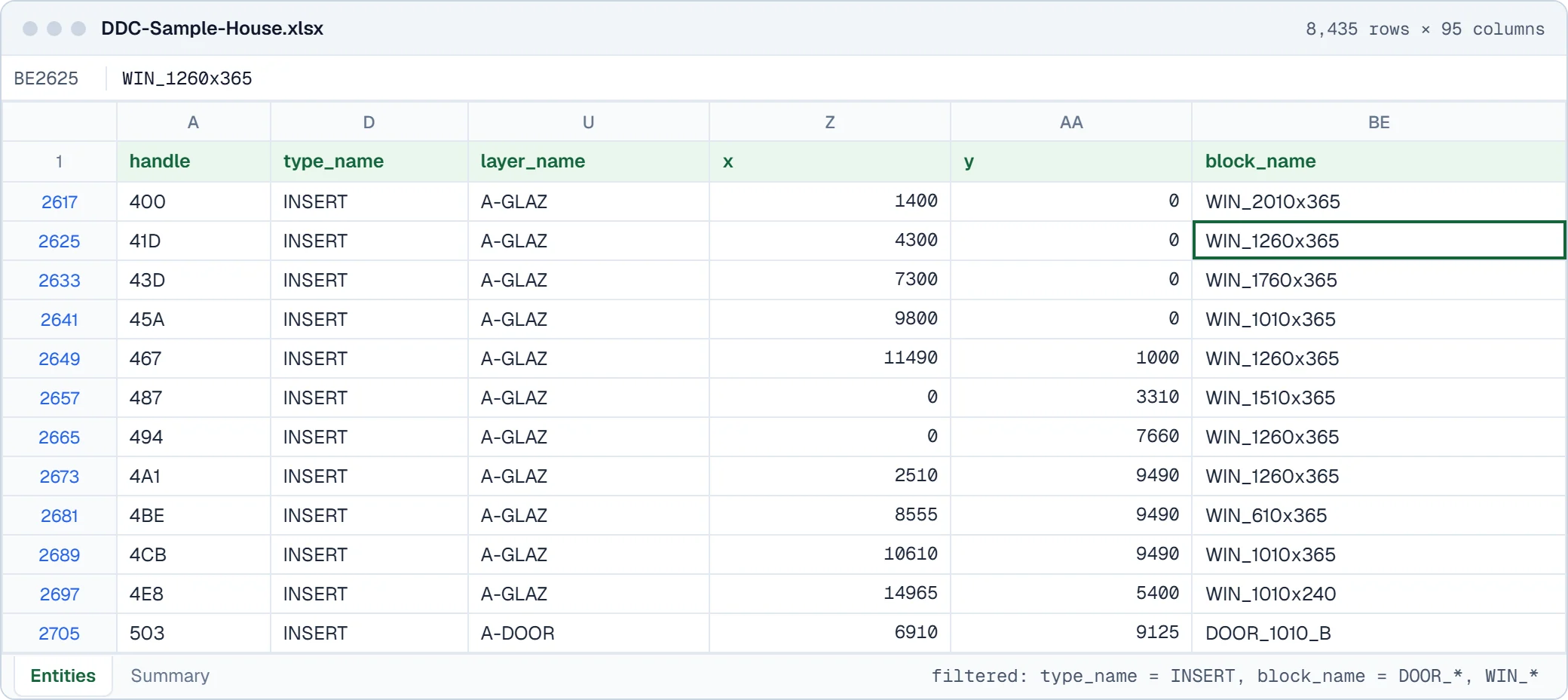
| 400 | INSERT | A-GLAZ | 1400 | 0 | WIN_2010x365 | ||
| 41D | INSERT | A-GLAZ | 4300 | 0 | WIN_1260x365 | ||
| 503 | INSERT | A-DOOR | 6910 | 9125 | DOOR_1010_B | ||
| 14D0 | TEXT | A-ANNO-TEXT | 3369.1 | -6446.1 | GROUND FLOOR PLAN | ||
| ED1 | TEXT | A-ANNO-TEXT | 35052.5 | 3545 | Garage roof, extensive green roof | ||
| 8B7 | LINE | A-GRID | 245 | -3280 | |||
| 8BE | LINE | A-GRID | 3445 | -3280 | |||
| 8,428 more rows, 88 more columns in the file | |||||||
One model, every parameter as rows
Rotate the model or zoom into the drawing and click any element: on the right you see the row the converter wrote for it, with every parameter. The same table holds all elements at once, ready for Excel, BI or code.
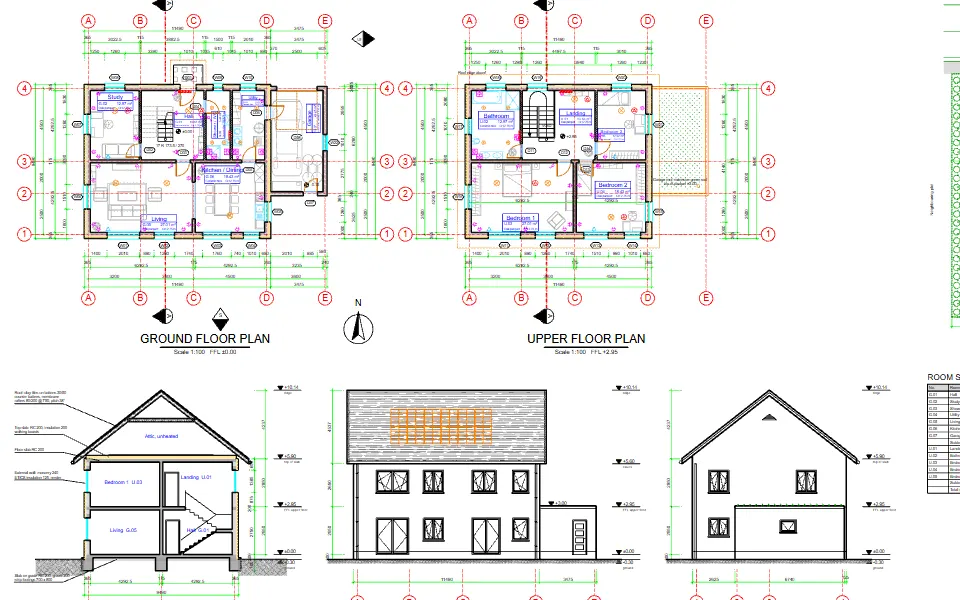
Redrawn from the XLSX rows only: 2,319 entities on 28 layers
Example row: A-GLAZ (INSERT), ID 400
- handle
- 400
- type_name
- INSERT
and 36 more parameters in this row.
Model: DDC-Sample-House.dwg, our own sample (download; © DataDrivenConstruction, sample for testing, CC BY 4.0). Download the Excel result. Credits
What you get
One row per drawing entity, keyed by its handle
Lines, polylines, blocks, dimensions and texts each get a row with layer, linetype, geometry values and block attributes as columns.
Columns in Fig. 1, with real values
| Column | Example | What it holds |
|---|---|---|
| handle | 400 | DWG handle, unique per entity |
| type_name | INSERT | Entity type |
| layer_name | A-GLAZ | Layer |
| x | 1400 | Insertion or start point X |
| y | 0 | Insertion or start point Y |
| block_name | WIN_2010x365 | Block name, for block inserts |
| text_plain | Text content, for TEXT and MTEXT |
Fig. 2. Values from the first row of DDC-Sample-House.xlsx.
For developers: output files
<name>.xlsx, <name>.csv, <name>.jsonlEntities, layers and block attributes.<name>.dxf, <name>.svgThe drawing as DXF and as SVG.report.json, REPORT.txtWhat was converted, refused or not supported yet.
In short
- XLSX, CSV and JSONL with entities, layers and block attributes.
- The drawing as DXF and SVG.
- report.json and REPORT.txt: how many records were converted, refused or of a type that is not supported yet.
- Batch conversion of several drawings in one call, with one JSON status line per file (--json).
Worked example
Entity count per type for a whole drawing, in one line of pandas
The Entities sheet has 8,435 rows. The 8 most frequent entity types cover 6,792 of them.
import pandas as pd
df = pd.read_excel("DDC-Sample-House.xlsx", sheet_name="Entities")
df["type_name"].value_counts().head(8)
Block attributes, lines, texts and block inserts make up most of the rows; filter by layer_name or type_name to schedule what you need.
| type_name | Rows | Share |
|---|---|---|
| ATTRIB | 1,549 | 18.4 % |
| LINE | 1,173 | 13.9 % |
| TEXT | 1,150 | 13.6 % |
| INSERT | 849 | 10.1 % |
| LWPOLYLINE | 641 | 7.6 % |
| POINT | 588 | 7.0 % |
| SEQEND | 452 | 5.4 % |
| ATTDEF | 390 | 4.6 % |
| All rows | 8,435 | 100 % |
Fig. 4. Result of the code on the real output file DDC-Sample-House.xlsx.
Real output
The output, as it opens
Screens of real converter output from our test files, not mock-ups.
How to convert
Convert from the window, PowerShell or Python
Same converter, same output. Start with the window, then put the command in a batch file, a script or an n8n workflow.
In the window
- Download the Setup.exe or the portable ZIP.
- Start the app and choose DWG files.
- Press Convert. A folder per drawing appears.
# a folder Plan with xlsx, csv, jsonl, dxf, svg and the report
> dwg2excel.exe "C:\Drawings\Plan.dwg" -o "C:\Out"
import subprocess, pathlib
files = [str(f) for f in pathlib.Path(r"C:\Drawings").glob("*.dwg")]
subprocess.run(["dwg2excel.exe", *files, "-o", r"C:\Out", "--no-dxf", "--no-svg", "--json"], check=True)
Folders of files, nightly runs, checks and reports: n8n workflows that call the converters.
Before you download
What it reads, how we test it, where it stops
Supported versions and formats
- Input
- DWG R13 to 2018
- Output
- XLSX, CSV, JSONL, DXF, SVG, reports
- Platforms
- Windows 10/11 64-bit (desktop app and command line)
- CAD software needed
- No
Supported scope
- Some object types are reported as unsupported or refused instead of being exported; report.json lists them.
- Output is data plus DXF and SVG drawings, not 3D geometry for BIM.
- We do not convert DWG to IFC or RVT.
- Windows 10/11 64-bit only.
A file that does not convert? Send it to us and we add it to the test set.
Reviews
Reviews and a walkthrough
DWG Processing with ChatGPT: No CAD Software Needed. Guide for Efficient File Management. Plays from youtube-nocookie.com after you click.
Most civil design files are basically data prisons. Loads of useful info—alignments, surfaces, quantities—just sitting there, locked inside formats that were never meant to play nice with anything outside their original software. I’ve wasted way too much time trying to answer simple questions like 'how many manholes are in this job?' or 'what’s the volume by phase?'—only to find out the data’s buried five layers deep in a DWG or DGN. DataDrivenConstruction fixes that. Their converters crack open these closed formats and give you structured data you can actually use—in Power BI, in Excel, or even in an LLM prompt if you're doing something fancy. It's not flashy, but it’s insanely useful. If you’re trying to move beyond screenshots and PDFs and actually use your design data, this is the kind of tool that makes it possible. It’s the difference between guessing and knowing. And honestly, it’s saved me more than a few Saturday mornings.
 Chris AndrewDigital Transformation Technical Lead, international engineering consultancy
DataDrivenConstruction Excel Add-In is a wonderful additional tool to help extract data from CAD (BIM) RVT, IFC, DWG files in order to move forward with information validation processes in your workflows. Additionally the possibility to turn the long complex Excel file into easily human-and machine-readable files keep the Add-In modern and compatible with recent developments within IT. As we move forward in the industry it is crucial to think about diversity of data and how to find the most suitable outputs in order to keep said data valuable, up to date and usable. An influential tool with a user-friendly interface helping the construction industry move towards the future!
 Marie Annette KittusBIM Manager, BIM services company
Questions
Questions about CAD Drawing to Excel
Short answers, including the ones that are no. Where we do not do something, we say what works instead.
All questionsWhich DWG versions are supported?
Drawings from R13 to 2018. Object types that are not supported yet are reported in report.json instead of being silently dropped.
Do I need any CAD software?
No. The converter reads DWG files without any CAD software or licence.
What columns does the Excel file have?
One row per entity with its handle, class, layer, linetype, length, area and block attributes. Our sample drawing DDC-Sample-House.dwg gives 8,435 rows and 95 columns.
Which files does it write?
XLSX, CSV, JSONL, DXF and SVG plus a report, in a folder per drawing. The free <a href="https://github.com/datadrivenconstruction/cad2data-Revit-IFC-DWG/tree/main/ddc-tools">ddc-tools</a> (check, qto, table, convert) work on them.
Can it convert DWG to IFC or RVT?
No. It extracts data to tables and writes the drawing as DXF and SVG. There is no 3D BIM output.
Is this an online converter?
No. It is a download that runs on your own Windows computer. Files are never uploaded, so confidential projects stay on your machine.
Is it free for commercial work?
The Community version is free for personal use and for companies up to 10 conversions a month. Client work, or more conversions, needs the licence: one payment, perpetual use of the version you have, 12 months of updates, no ads. Request a quote on the licence page.
Related
Other converters, same table shape
- RVTGLBJSONLRVT to Excel converter
Geometry as GLB, every element's saved parameters as JSONL, optional IFC4, and a flat Excel table with one row per element.
- IFCXLSXJSONIFC to Excel converter
Every object, property set and quantity in one Excel workbook, one sheet per kind of data.
- RVTIFCRVT to IFC converter
Standalone RVT to IFC4 export for openBIM coordination, with profiles, units, origin and category filters.
- RVTGLBJSONLRVT to GLB converter
GLB geometry for visualisation and game engines, with element IDs that match the parameter data.
Not sure which one? Versions, outputs, command line and smoke test for every input, side by side.
Compare all convertersFree Community version
Turn your next DWG file into XLSX
Entities, layers and block attributes from DWG drawings as XLSX, CSV and JSONL, plus DXF and SVG drawings. Free Community version, runs on your computer.
20 MBWindows 10/11 x64runs offline
Licence, team setup or a file that does not convert?
- E-mailinfo@datadrivenconstruction.io
- FormContact form
- CallBook a call
Artem Boiko or an engineer from the DDC team replies by e-mail.